
Interface
Party Settings & Party Matching
⚙️ Party Settings
As a party leader, you have exclusive tools to manage your members directly from the on-screen party interface.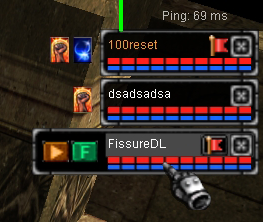
Buttons:
Flag: Allows you to transfer party leadership to another member.Play: Remotely activates the Helper of the selected character.
F (Follow): Commands the selected character to start following you automatically.
🔍 Party Matching
This system allows you to find active groups across the entire server or create your own with specific requirements for others to see.Leader Configuration ([P] Key)
If you are the leader, by pressing "P" you can configure how your group is displayed to the rest of the server.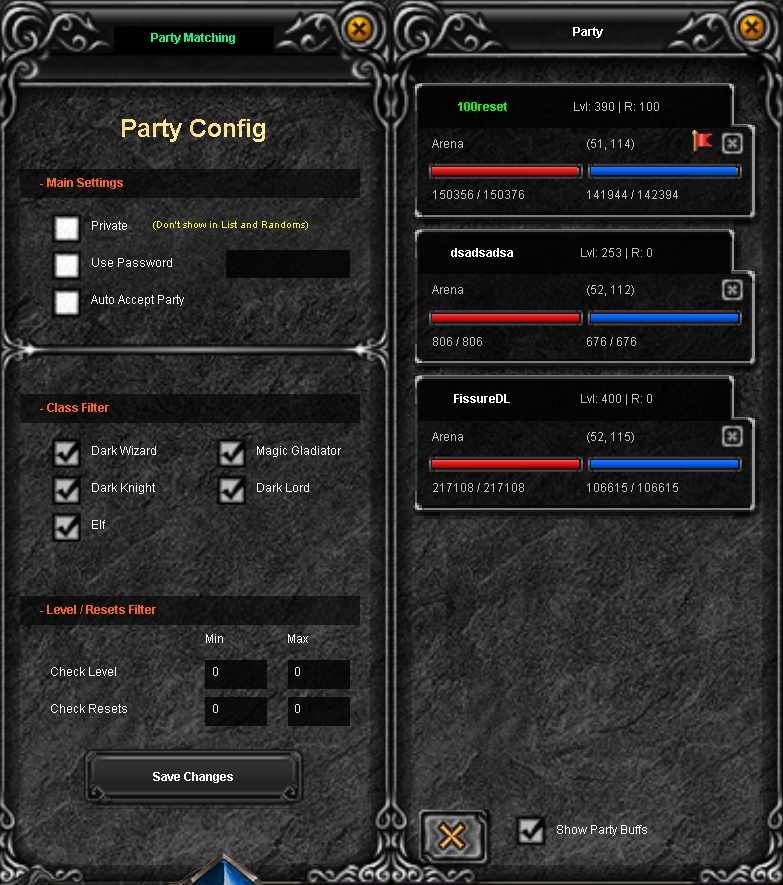
-Main Settings:
Private: If you check this option, your party will not appear in the global list.Use Password: Set a password so only your friends can join.
Auto Accept Party: Players will join instantly upon sending a request.
-Class Filter:
You must check at least one class for the party to be visible. You can filter so only the classes your team needs (e.g., only Elves) can see it.-Level/Resets Filter:
Restrict access by level or minimum and maximum amount of resets.📩 Request Management
If you do not have Auto Accept activated, when someone wants to join you will see a flashing icon in the top right part of your screen.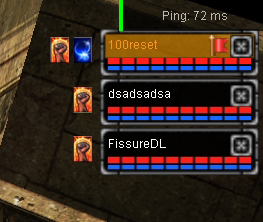
By giving it a [Left Click], the request interface will open where you can see who wants to enter and decide whether to accept or reject them.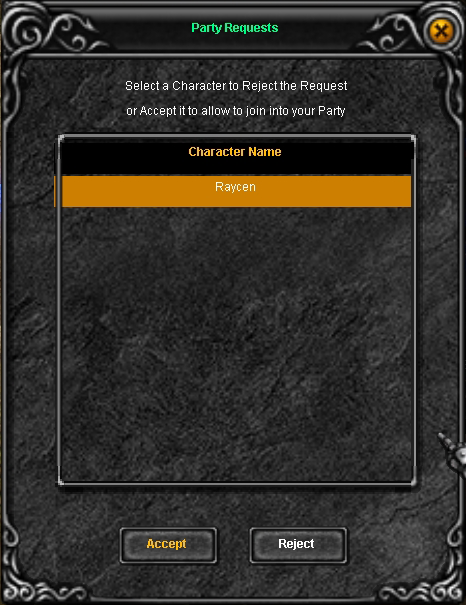
How to search for a Party ([P] Key)
If you are alone and looking for a team, press "P" to see the list of available groups on the server.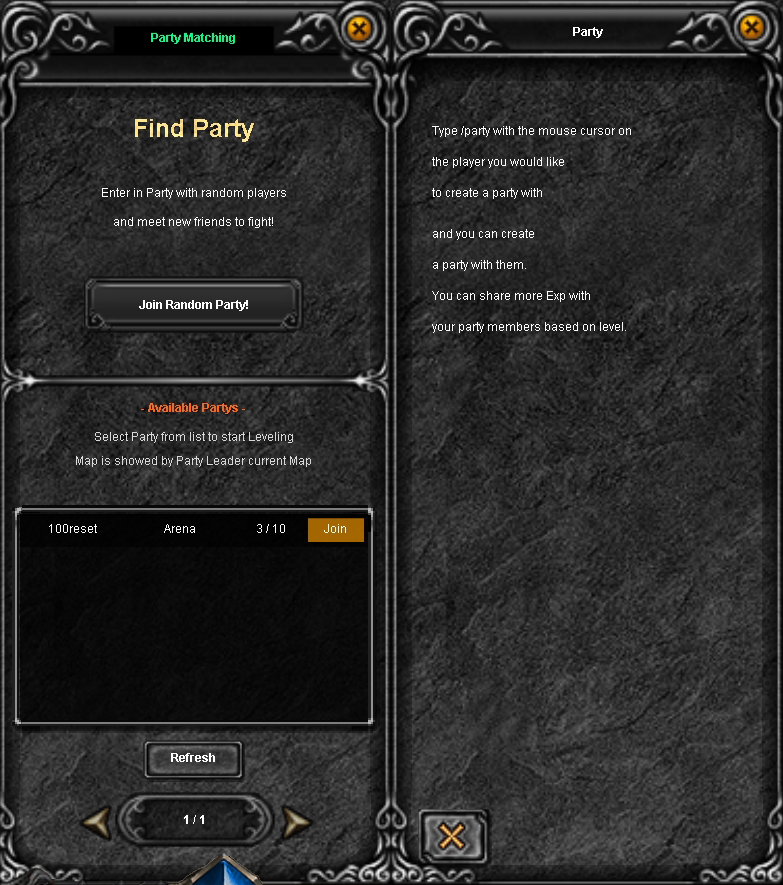
List: You will see the leader, the map, and how many members there are (e.g., 3/10).
Join Random Party!: Click to automatically join any group that has an available slot and meets your requirements.